How Do I Change My Business Hours on Google? Fixing Wrong Hours and a Wrong ‘Permanently Closed’ Label
Short answer: Yes, you can change your business hours on Google yourself, and it takes a few minutes. Sign in to the Google account that manages your Business Profile, search your business name, select Edit profile, then Hours, set each day’s opening and closing times, and save. Google usually reviews the edit in up to 10 minutes, though sometimes it can take up to 30 days.
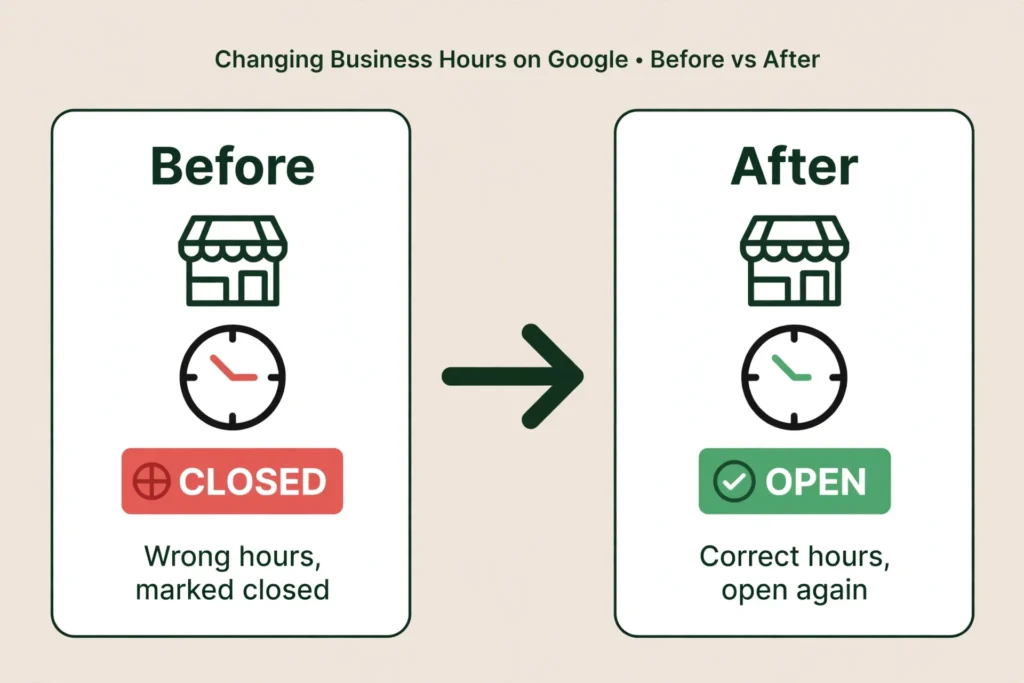
But changing the hours back is only half the job. Google can change them again. Your profile is not fully yours. Google gathers information from user reports and licensed content and may update your profile when those sources say your details are wrong or out of date, and anyone with a Google account can suggest an edit to your listing. So the real fix has three parts: change the hours back, answer suggested edits within the four days Google gives you, and keep your hours the same on your website and everywhere else Google looks.
If your business was marked permanently closed by mistake, you can reopen it yourself the same way. Go to Edit profile, then Hours, choose “Open with main hours”, set your days and times, and save. That is the whole fix, once you know it happened. The hard part is noticing it happened in the first place.
Why Google changes your hours without asking
There are three ways your hours can change without you touching anything.
- 1. Google updates them itself. Google gathers information from user reports and licensed content. If those sources say your details are wrong or out of date, Google may update your profile. When it does, the changed fields are marked in blue in your profile editor, and you get a notification. Google explains this on its Understand Google updates on your Business Profile page.
- 2. A member of the public suggests an edit. Anyone with a Google account can suggest an edit to your listing in Google Maps, including your hours and including marking you as closed. Google reviews the suggestion, and it may publish it if other public information supports it. That is how a stranger’s suggestion becomes your new opening hours.
There is a sharper edge to this one. Google says it may apply suggested edits to your business information without prior review, when edits are necessary to meet policy guidelines. That means some wrong edits can appear with no warning at all, and no four-day window to stop them. It is the main reason a wrong edit can show up before you ever see a notification.
- 3. Your own website or a directory disagrees with your profile. If your website says you close at 6 and your profile says 8, Google has to pick one, and it does not always pick yours. Old details in directories can outlive the people who entered them, and Google keeps reading them. A stale listing on a directory you forgot about can keep feeding Google the wrong hours for years.
None of this means your profile is broken. It means your profile is not fully yours. Google treats it as a shared record, and the owner is only one voice in the room. That is the gap this article is about: you own the business, but you do not have sole control over what Google shows about it.
The four-day window for suggested edits
When someone suggests an edit to your profile, Google gives you four days to accept or reject it once it notifies you. This is Google’s own rule, added to its help page in September 2026. If you do not answer in that time, Google may publish the edit anyway when other public information, such as your business website, supports it. The rule is on Google’s Understand Google updates on your Business Profile page.
Two qualifiers matter. First, the four-day window applies only to the suggestions Google decides need your review. You get an email or an in-product notification for those. Second, as noted above, some edits are applied without prior review at all, so there is no window for those. You cannot stop every edit. What you can do is answer the ones Google shows you, fast.
Do not let suggested edits sit. Check for them every time you open your profile, and at least once a week. Four days is not long, and a missed notification is how a wrong edit becomes your public hours.
How to change your business hours on Google, step by step
Here is how to change your business hours on Google, using Google’s own steps.
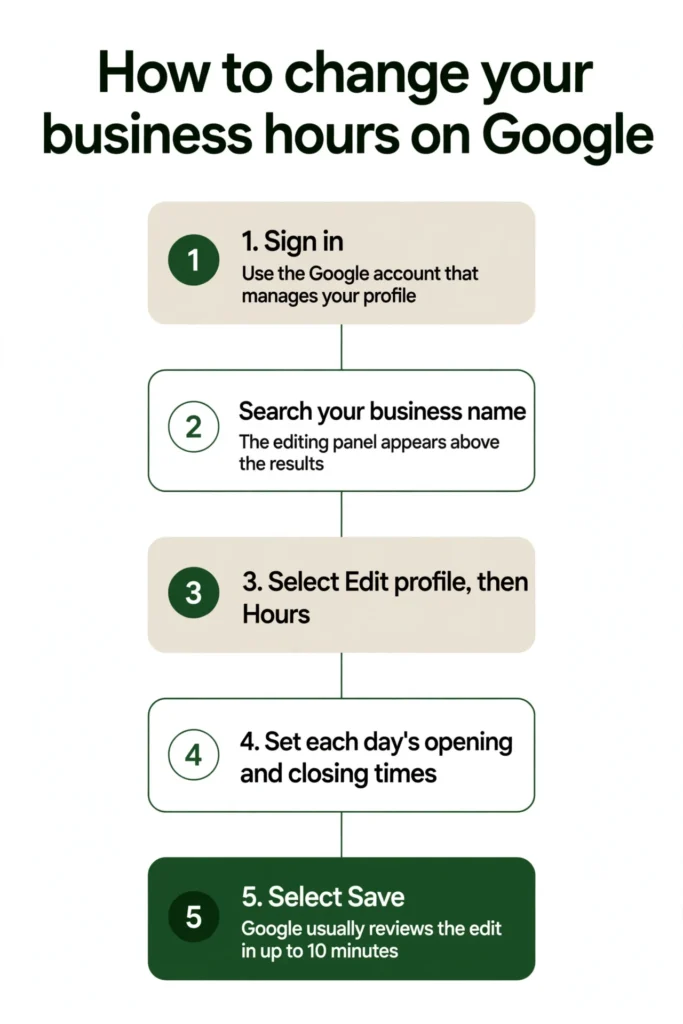
- Sign in to the Google account that manages your Business Profile. You need the account linked to the profile; a different Google account will not show the editing panel.
- Search your business name on Google. The editing panel appears above the results. If nothing appears, you are signed into the wrong account, or the listing is not claimed.
- Select Edit profile, then Hours.
- Set each day’s opening and closing times. Check the box next to each day you are open, and use the dropdowns to set the times.
- Select Save.
Google reviews the edit before it shows up in public. Google says edits usually take up to 10 minutes to review, but sometimes it can take up to 30 days. That is a review time, not a go-live time, so an accepted edit still has to display. If your hours have not changed after a few days, check the edit status in your profile. Google shows each edit as Accepted, Not approved, or Pending.
One thing to know before you edit anything else while you are in there. The edits that cause real trouble are name, address, and category changes. Google warns that changing your business name after verification may mean you have to verify the business again, and the same applies to categories. Hours and phone edits do not carry that warning. So fix the hours and save, and leave the name and category alone unless they are genuinely wrong. Name and category mistakes are among the most common profile errors; see the common Google Business Profile mistakes to avoid. If your category is wrong, the decision is covered in How Do You Pick a Primary Category When Your Business Does Many Things?.
One more thing. Do not make a dozen edits in one session. Too many edits at once can trigger a suspension or another round of verification, so make the hours fix, save, and leave the rest for another day. If a profile does get suspended, the loop of suspension, reinstatement, and suspension again is covered in Google Business Profile Suspended, Reinstated, Then Suspended Again? How to Break the Loop.
If Google changed your hours, check the rest of the profile while you are there. Look at the phone number, the website, the address pin, and the category. One wrong field is a reason to look at the others.
Special hours, temporarily closed, or permanently closed: which one to use
Google has three ways to say you are not open. They are not the same, and picking the wrong one causes trouble.
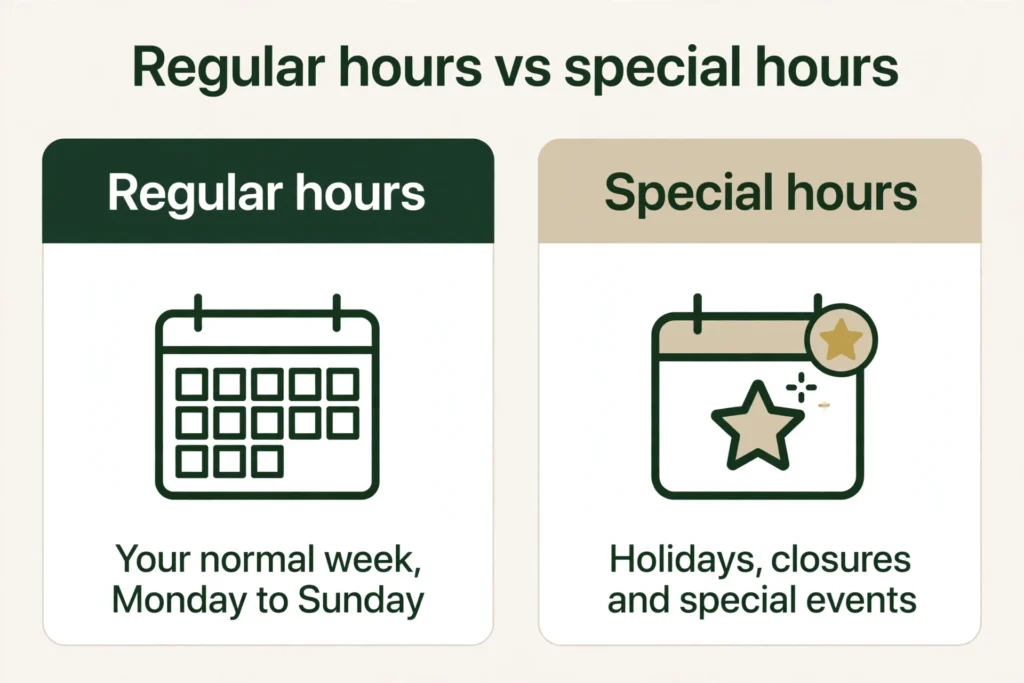
- Special hours: use these when you are closed or open different hours for a few days, a public holiday, a family emergency, or a short break. Special hours apply only to the dates you pick. Your normal weekly hours stay untouched. Set them ahead of time when you can.
- Temporarily closed: use this when you are closed for more than about a week, for a season, or for an unknown length of time. Your listing and reviews stay in place, and you switch the status back when you reopen. Google does say that for broad searches a temporarily closed business can rank behind open ones, so it is not a free pause. It costs you visibility while it is on.
- Permanently closed: use this only when the business has shut down for good. A closed business does not vanish from Maps right away. It drops out of results over time. Never use this as a quick way to pause a listing.
The distinction matters because owners reach for the wrong one under pressure. A one-day closure is a special-hours job. That is what special hours exist for: a single day, or a few days, with your normal weekly hours left exactly as they are. Do not edit your regular hours for a one-day change. Set special hours for the date instead.
The owner in the Reddit post that started this article had a family emergency and logged into his verified profile to adjust his hours. Google overrode him, a customer drove out and found the place closed, and he was angry enough to want to delete the whole account. That is the damage a wrong-hours day does, and it is why the right tool for a short closure matters. For a single day, or a few days, special hours are the tool. Your regular hours stay clean, and the closure ends on its own when the dates pass.
Wrongly marked permanently closed? Reopen it yourself
This is the nasty one. A member of the public suggests your business has closed, Google publishes it, and your listing shows a red “Permanently closed” label to everyone who searches. That is how a Google Business Profile gets marked permanently closed when the business is still open.
You can fix it in a minute, once you know it happened. Here is how to reopen a permanently closed Google Business Profile.
- Sign in to the Google account that owns the listing.
- Open your profile and select Edit profile.
- Go to the hours section and choose “Open with main hours.”
- Set your days and times and save.
Google’s own page on how to mark your business as reopened gives these steps, and it confirms that a business mistakenly marked permanently closed can be reopened. Once you reopen it, your profile is no longer marked temporarily or permanently closed on Search and Maps.
Check the rest of the profile after you reopen it anyway. A wrong closure is a sign someone or something has been editing your listing, and the phone number, website, and hours are worth a look at the same time.
There is one case where reopening is the wrong move. If your business was marked permanently closed as part of a location or name change, do not reopen the business. Google says to add a new business instead. That is the one case where a new profile is the right answer. You must verify the new profile, and if you want your reviews moved to the new profile, contact Google for help.
If the “Permanently closed” label keeps coming back after you reopen it, look for the source. A duplicate listing that says you are closed, or a directory that still lists you as closed, are the first places to check. Clean up the duplicates and the wrong directory entries, and the label usually stops returning. That is a reasonable place to look, although Google does not publicly describe a mechanism for a closed label feeding back from a duplicate or a directory, so treat it as the likely cause to check, not a confirmed one.
How to stop it happening again
You cannot lock a Google Business Profile. Google accepts suggested edits from the public and its own data updates, and it may apply them without asking you. Google says plainly that you cannot manage all Google updates through your Business Profile. So protection is not a lock. It is a habit.
- Check the profile once a week. Five minutes is enough. Hours, phone, address pin, category, website, and whether any suggested edits are waiting for an answer.
- Watch for notifications. When Google changes something, you get a notification and an alert in the Edit profile section. If you never see the notification, you never know it happened. Suggested-edit notices come by email or as an in-product notification, so do not ignore them.
- Answer suggested edits fast. You have four days once Google notifies you. If you do not answer in time, Google may publish the edit anyway. Do not let them sit.
- Keep your hours the same everywhere. Your website, your Facebook page, Yelp, and the main directories should all show the same hours. Google checks suggested edits against other public information, so when everything agrees, a wrong suggestion has less to stand on. Keeping name, address, and phone consistent everywhere is the same habit; see NAP consistency.
- Use special hours for short closures. Do not edit your regular hours for a one-day closure. Set special hours for the date, and your normal hours stay clean.
- Keep a baseline. Once a month, screenshot your profile: name, phone, website, hours, category, and address. If something changes, you can see exactly what changed and when, and you have proof for a support case.
If someone keeps changing your listing on purpose
If the same wrong edits keep coming back, or your phone number and website keep being changed to someone else’s, that is not a normal suggested edit. That is fraud.
- Screenshot the wrong information before you touch anything. The wrong phone number, the wrong website, the duplicate notice, the dates. Save it before you change anything.
- Use Google’s Business Redressal Complaint Form. It covers misleading information or fraudulent activity on Google Maps related to the name, phone number, URL, or address of a business, and a business that does not exist. Fill it out completely, because the form warns that it will not process a complaint that is not properly filled out or is incomplete.
- Open a case with Business Profile support through the help centre contact form and attach your screenshots and your baseline. Keep your own log and keep following up.
Do not pay anyone who offers to “recover” your profile for a fee through a back door. There is no back door. The process is the request form, the redressal form, and support.
Should you delete the account?
The owner in the post was so frustrated that he wanted to delete the entire account. That feeling is understandable. It is also the wrong move in almost every case.
Here is what removing a profile actually does, because it is not what most owners think. Google calls it removing profile content and managers, not deleting. When you remove all ownership and content, your own posts, photos, videos, and review replies are permanently removed, and you lose management access. You cannot get them back.
But your customer reviews stay. Google says user-generated content and reviews remain after removal. Your reviews do not disappear with the profile. The place itself can still show up on Search and Maps, because removing the managed profile does not guarantee the business will not show up. That is the worst of both worlds: you lose control and keep the problem. Google’s page on removing a Business Profile states all of this.
A new profile does not fix the cause either. Google accepts edits from other sources on any profile, so the same wrong hours can land on the new one too. That is reasoning from how Google’s update mechanism works, not a promise Google makes about replacement profiles, but the mechanism is the same for every profile.
Fix the hours, set the notifications, and check the profile weekly. That is less work than starting over, and it actually works.
What to do next
If Google changed your hours, or marked you closed, fix it now using the steps above, then set up the weekly check so you catch the next one inside the four-day window. The fix takes minutes. Noticing it is the hard part.
If the hours keep changing, or the profile was marked closed and you want a second pair of eyes on the whole profile, Axiom’s free audit looks at the profile, the hours, the duplicates, and the wrong directory details together, and tells you what to fix first. If you would rather have the profile watched for you, so wrong edits get caught fast, see GBP management.
Frequently asked questions
Sign in to the Google account that manages your Business Profile, search your business name, select Edit profile, then Hours. Set each day’s opening and closing times and save. Google says edits usually take up to 10 minutes to review, but sometimes it can take up to 30 days. If nothing appears when you search, you are signed into the wrong account, or the listing is not claimed.
Google gathers information from user reports and licensed content, and it may update your profile when those sources say your details are wrong or out of date. Anyone with a Google account can also suggest an edit to your listing, and Google may publish it when other public information supports it. Some edits are applied without prior review at all. Your own website or a directory can also disagree with your profile, and Google has to pick one. Google explains the mechanism on its Understand Google updates on your Business Profile page.
Four days, once Google notifies you. That is Google’s own rule, added to its help page in September 2026. If you do not answer in that time, Google may publish the edit anyway when other public information, such as your website, supports it. The window applies only to the suggestions Google decides need your review, and some edits skip review entirely. Answer suggested edits as soon as you see them.
Special hours are for a few days, a holiday, an emergency, or a short break. They apply only to the dates you pick, and your normal weekly hours stay untouched. Temporarily closed is for more than about a week, a season, or an unknown length of time; your listing and reviews stay in place, and you switch it back when you reopen, though Google says a temporarily closed business can rank behind open ones for broad searches. Permanently closed is only for a business that has shut down for good.
Reopen it yourself. Sign in, open your profile, select Edit profile, go to the hours section, and choose “Open with main hours.” Set your days and times and save. That is how to reopen a permanently closed Google Business Profile. Then check the rest of the profile, because a wrong closure is a sign someone or something has been editing your listing. If the closure came from a location or name change, do not reopen it; Google says to add a new business instead.
Someone suggested your business had closed, and Google published the suggestion, or Google’s own data update marked it closed. A member of the public can suggest a place is closed in Google Maps, and Google reviews the suggestion. If other public information supports it, the label goes up. A duplicate listing that says you are closed, or a directory that still lists you as closed, are also worth checking, although Google does not publicly describe that as a confirmed mechanism.
Go to Edit profile, then Hours, and mark the business as permanently closed. Only do this when the business has shut down for good. A closed business does not vanish from Maps right away; it drops out of results over time. Never use permanently closed as a quick way to pause a listing. If you only need to close for a while, use temporarily closed instead, or special hours for a few days.
No. You cannot lock a Business Profile. Google accepts public suggested edits and its own data updates, and it may apply them without asking you. The protection is a habit: check the profile weekly, watch for notifications, answer suggested edits fast, and keep your hours the same on your website and in the main directories.
Something is probably feeding Google the wrong hours. The usual suspects are your own website, a directory that still lists the old hours, or a duplicate listing. Fix the source, not just the profile. Check your website first, then the main directories, then look for a duplicate listing. That is a reasonable diagnostic possibility, not something Google has publicly confirmed as the mechanism.
Almost never. Removing the profile deletes your own content, your posts, photos, videos, and review replies, and your management access, and you cannot get them back. Your customer reviews stay on Maps with the place, and the place itself can still show up. A new profile does not fix the cause, because Google accepts edits from other sources on any profile. Fix the hours and set up the weekly check instead.
Use special hours. Go to Edit profile, then Hours, and set special hours for the dates. Your normal weekly hours stay untouched. That is also how to add holiday hours to your Google Business Profile. Do not edit your regular hours for a one-day change.
Fix the hours first, then set special hours for any days you will be closed. If the wrong hours came from a suggested edit you never saw, watch for notifications so you see the next one. If a customer complains, answer them honestly and tell them the hours are fixed.
See What This Looks Like for Your Business
Find out whether your profile has an hours, category, or verification problem before it costs you calls.
Get My Free Audit